Ecommerce, SEO, Gadgets, Mac und Internet Themen

EasyTrails GPS – und es ist doch möglich GPS zu tracken, während das Display beim iPhone ausgeschaltet ist.

Kategorie: gps, iPod & iPhone

Leider musste ich bisher feststellen, dass es keine Software gibt, die im Ruhezustand des Displays aufs GPS zugreifen kann und Ihre Arbeit quasi im Hintergrund verrichtet. Ich habe mir auch “anhören” müssen, dass es beim iPhone nicht möglich sei das Display bei Tracken zu deaktivieren. Jetzt hatte ich ja aber selbst zufällig entdeckt, dass es anscheinend doch möglich ist! was also möglich ist hat bestimmt eine App – dachte ich und ward nach langer Suche bei freshapps doch fündig geworden.


Die Lösung heißt EasyTrails GPS. Die App bietet unter Anderem auch die Option beim in standby geschicktem Phone GPS zu tracken! “Besides, the chance to record even while the iPhone is on standby ensures the maximum battery life.” [freshapps]. EasyTrails GPS kann auch wie Trails offline Tracken und benötigt ebenso keine Internetverbindung um zu funktionieren: “you can still track offline! No active internet connection is needed to register your tracks. You need a connection only if you want to see the maps and if they are not cached…” — würde also auch mit Prepaidkarten im Aus- und Inland funktionieren! Klasse also, wenn man im Urlaub tracken will.

Jetzt bleibt nur noch die Frage, wieviel % des Akkus wird es morgen auf dem Weg zur Arbeit fressen? Ich bin gespannt….

HTML mit JavaScript (jQuery) nachladen

Kategorie: web-development

Manchmal ist es ganz nützlich den Inhalt einer HTML Seite extern nachzuladen. Beispielsweise ist es unheimlich nützlich, wenn eine vom Shop oder CMS losgelöste Landingpage (Startseite) hinundwieder mit frischem Inhalt versorgt werden will, die Quelldaten des Templates aber im Verzeichnisbaum in der Dunkelheit des Grabens verscharrt sind, oder dieser Inhalt von propriätär gestalteten Templates ferngehalten werden soll. Ist das Templatesystem bereits auf php basierend, ist es indes sehr leicht mit Hilfe eines includes HTML Inhalt nachzuladen.

<?php include('file.html'); ?>

Besteht das Templatesystem jedoch aus reinen HTML Dateien, wird es etwas komplizierter. Hier gibt es an sich wohl nur zwei Möglichkeiten: Server Side Includes (SSI) oder JavaScript. Da SSI nicht bei jedem Hoster funktioniert, besteht also im Prinzip nur die Möglichkeit über JavaScript. Mit Javascript lässt sich bspw. der Inhalt von div Elementen sehr einfach manipulieren und somit auch durch einen nachgeladenen Code ersetzen. Dazu stehen hier stellvertretend zwei divs mit je eigener ID, deren Inhalt beim laden der Seite per JS verändert wird


  <div id="teaserContent">alternative content</div>
  <div id="teaserContent2">alternative content</div> 

Der alternative content ist dabei sehr wichtig, da sonst User ohne JavaScript an dieser Setlle nur ein weißes Feld ohne jeglichen Inhalt zu sehen bekämen. Der nachfolgende JavaScript Aufruf überschreibt dann den alternative content mit dem Dateien im angebenem Pfad. Er steht absichtlich nicht in einer document.ready() Umgebung, da der Inhalt möglichst schnell und vor dem rest der Seite nachgeladen werden soll.


<script type="text/javascript">
  $(function () {
    $('#teaserContent').load('landingpage/teaser.html');
    $('#teaserContent2').load('landingpage/teaser2.html');
  });
</script> 

Anschließend sei noch geraten, die div Elemente mit der korrekten Größe von vornherein mittels CSS zu versehen, da sonst während des Nachladens die Elemente der Seite springen!

MySQL Import and Export via terminal / shell

Kategorie: web-development

Import (Rücksicherung der Datenbank)

You are not able to import large files (>2MB) via PHPMyAdmin. To do so, you have to import your sql file with the mysql client:

mysql -hlocalhost -uuser -ppassword database_name < dump.sql

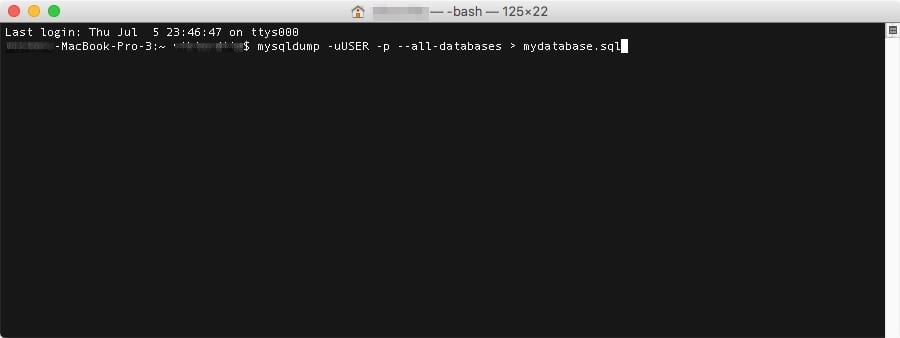
Export (Datenbanksicherung)

mysqldump -hlocalhost -uuser -ppassword database_name > dump.sql

Omnigraffle öffnet GraphViz Dateien

Kategorie: Internet

GraphViz .dot Dateien können in Omnigraffle importiert werden, allerdings nur zur Weiterverarbeitung. Nach dem Editieren ist ein Export zurück in .dot nicht möglich — leider! Jedes Objekt kann angefasst und bearbeitet werden. Das Layout ist allerdings standardmäßig suboptimal und sieht nativ in GraphViz zunächst besser aus. Nach dem Automatischen Re-layout von Omnigraffle und einigen Anpassungen, schaut der Graph aufeinmal aus, als wäre er per Hand im Omnigraffle gezeichnet worden!


direkter import in iMovie (ohne re-encoding)

Kategorie: Mac

Bring QuickTime-playable clips directly into iMovie

Import DV files into iMovie more quickly
Importing DV files into iMovie can take quite a while, even though iMovie uses DV as its native format, and no conversion is needed. A quicker way to do this is to create a new iMovie project and the close it again. Locate the project file you just created, Control-click it and choose Show Package Contents. This will open in a new window with some folders. Drag your DV footage into the folder named Media and close the window. Now, double-click the iMovie project file to open it. iMovie will open and then prompt you about some stray file; select View Trash. Then simply drag the clips to the media pane. This is very useful for users who have non-mini-DV camcorders who have to manually convert and then import their clips.

Bring QuickTime-playable clips directly into iMovie
When trying to use video clips in iMovie that have not been imported from a video camera directly into the program (such as divx or H.264 videos), I have found this to be very tedious. That’s because even if you choose to create a project using the MPEG-4 format, it always wants to convert the video — even if that video is already MPEG-4. Also I find it annoying that it duplicates the file on the hard drive. So here’s how to kill two birds with one stone:

Create a new movie project. If you’re wanting to edit widescreen clips from ripped DVDs, then choose the widescreen format, otherwise I just choose MPEG-4. Now close the project and go to the project file on your hard drive. Control-click and choose Show Package Contents from the pop-up menu. Navigate to the Media folder, and drop all your video clips in there.

From what I can tell, it will accept just about anything so long as you have the codecs that allow QuickTime to play it. Now open your project and it will tell you that there are items in the trash. Choose to view those items and then select all and drag them to the clips pane. Now you should be able to edit freely with those new clips without having to import them.

thank you macoshints

[tags]iMovie, DV, mp4, mpeg4, faster, direct, import[/tags]


wpSEO optimiert Blogs fr Suchmaschinen - automatisch und effizient.
Viktor Dite Mizine on Twitter Viktor Dite on Google+